Hi, how can we help you?
How to Schedule Meeting in Outperform (OP)
User on Web [All Users]
This guide walks you through how to schedule a meeting directly from the Deal Details page in OutPerform (OP). You can create a meeting either from the left information panel or from the interaction section on the right.
Method 1: Schedule Meeting from the Left Section (Information Bar)
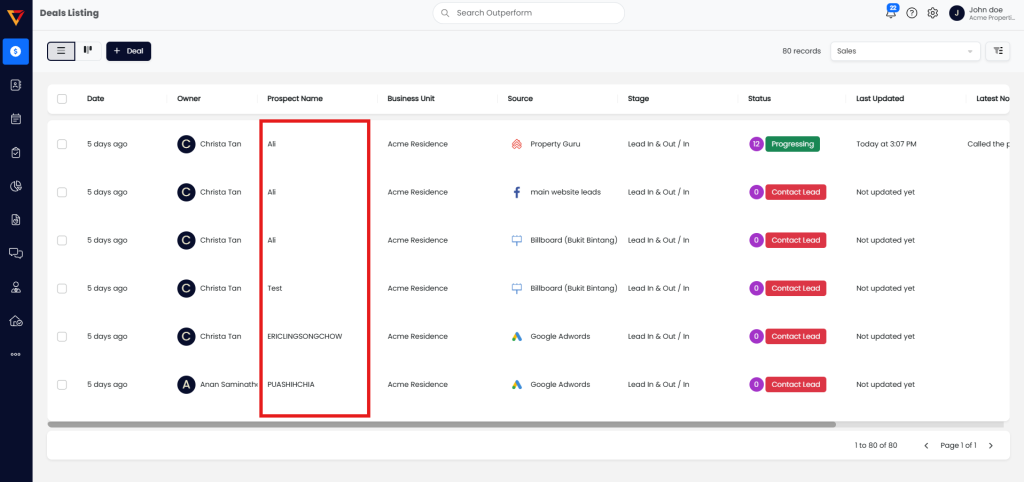
Step 1: Open the Deal Details Page
- Login to your OutPerform (OP) account.
- Go to the Deals section.
- Click on the deal you want to schedule a meeting for — this will open the Deal Details page.
Step 2: Schedule Meeting from the Left Section
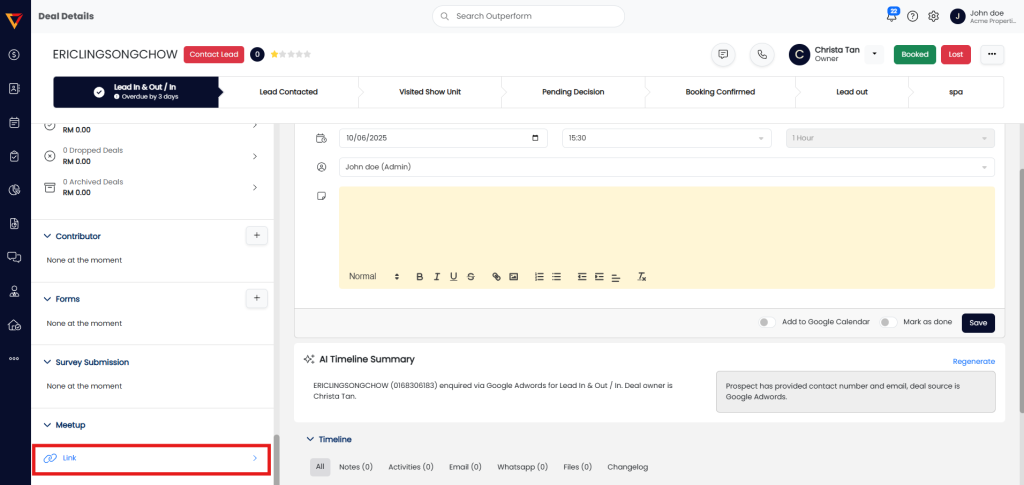
- On the left panel (Information Bar), locate the Meetup section.
- You will see a meeting link provided under this section.
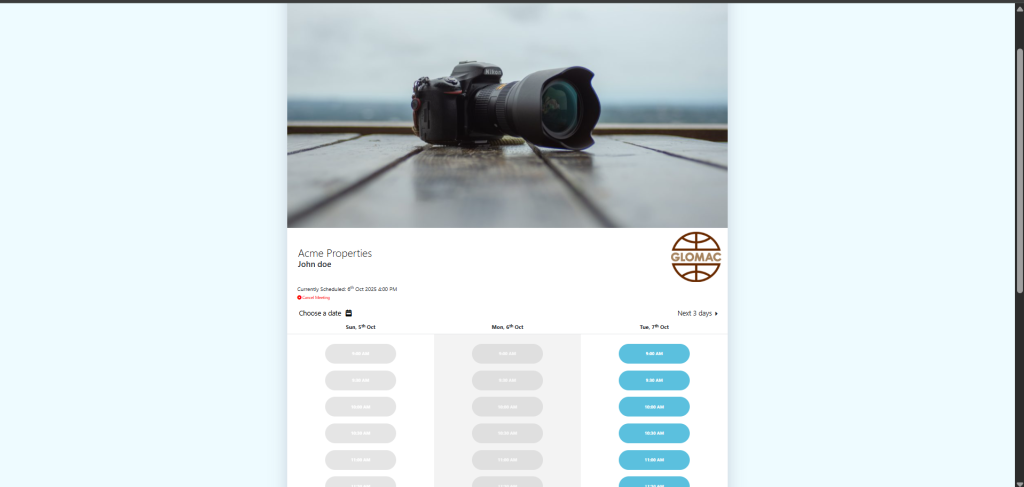
- Click on the link to schedule a meeting by selecting the date & time using the available interface.
Method 2: Schedule Meeting from the Right Section (Detail Interaction)
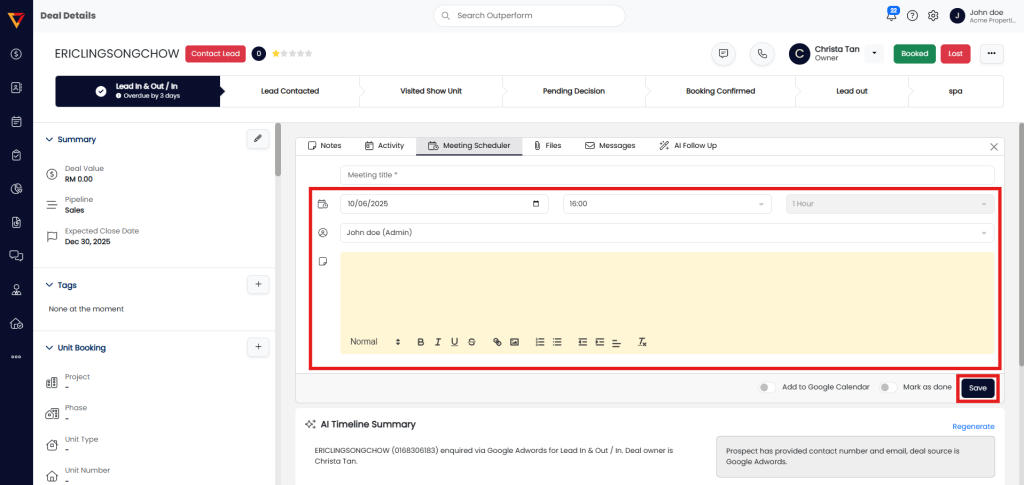
Step 1: Locate the Meeting Scheduler
- Dind the Meeting Scheduler bar in the Deal Details Page.
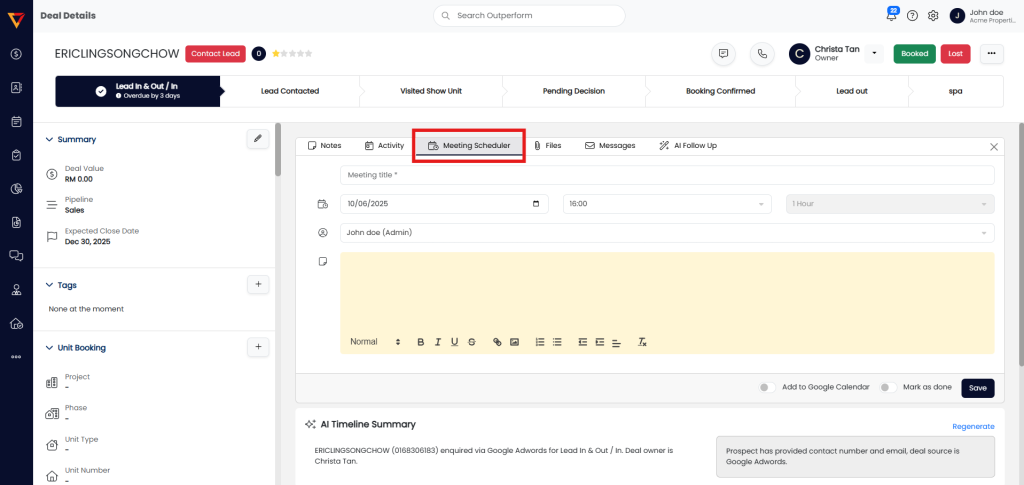
Step 2: Schedule Your Meeting
- Use the scheduler to input your meeting details:
- Meeting Title
- Date & Time
- Select User
- Notes (optional)
- Click Save to confirm.