
Hi, how can we help you?
How to find Deals within certain business unit in deal report?
This guide walks Admins and Managers through how to locate deals tied to a specific Business Unit using the Deal Report feature in Outperform (OP).
User on Web [Admin/Manager Only]
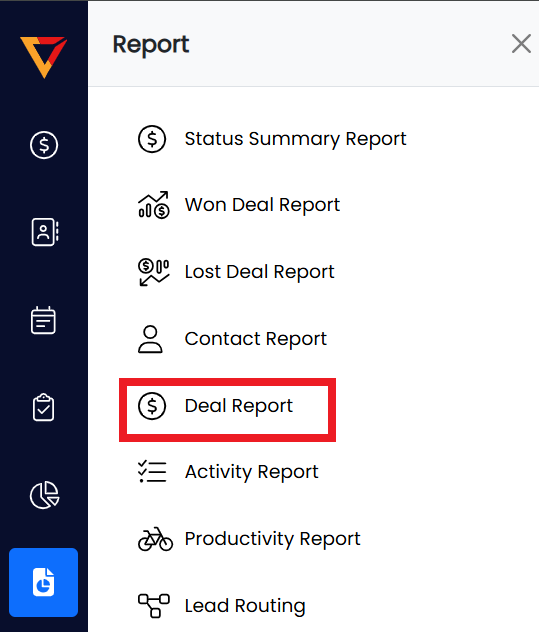
✅ Step 1: Access the Deal Report
- Log in to your Outperform account (Web version).
- Click on Report from the left-hand menu.
- From the dropdown, select Deal Report.
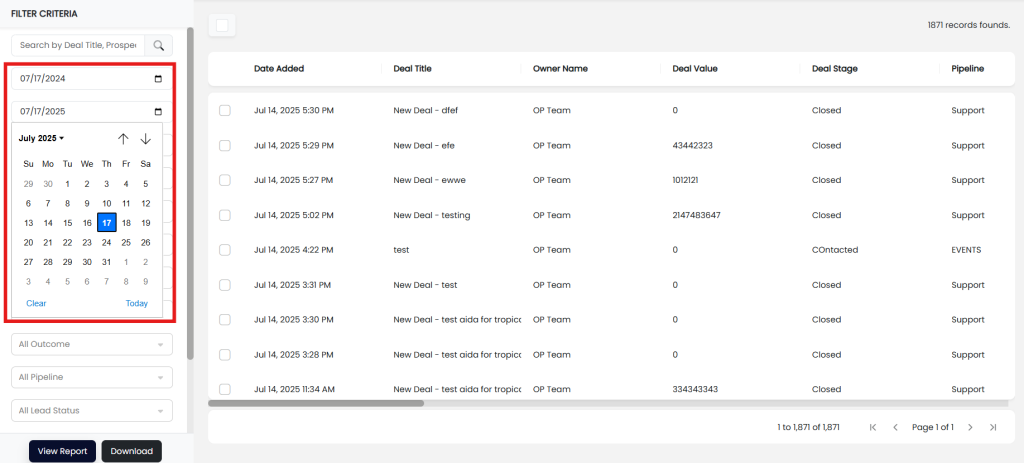
🗓️ Step 2: Set the Date Filter
- At the top left, choose the desired date range using the Date Filter.
- Example: Last 30 days, This Month, or a custom range.
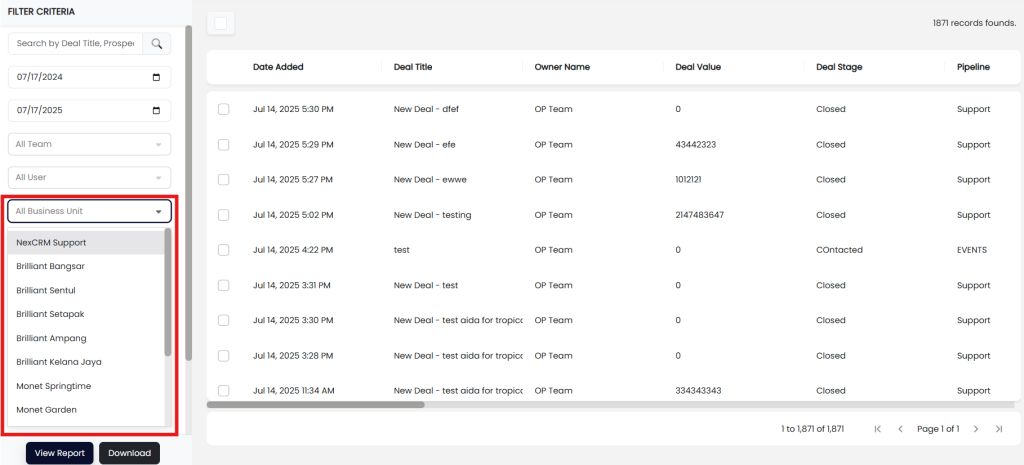
🏢 Step 3: Select Business Unit
- On the right-hand side (or filter panel), locate the Business Unit dropdown.
- Select the specific Business Unit you want to filter by.
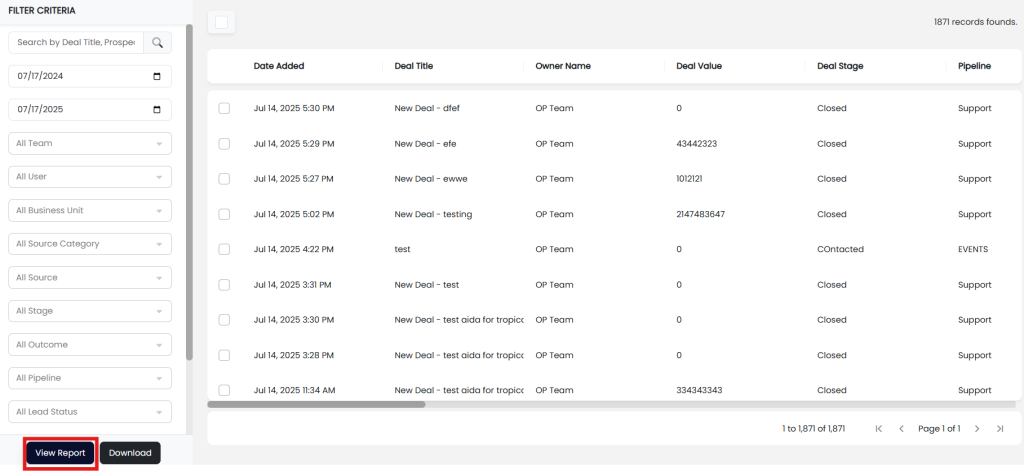
📄 Step 4: View the Report
- Click the View Report button to generate results based on your filters.
🎉 Done!
You’ll now see all deals that match the selected Business Unit and date range.
✅ Pro Tips
- Combine Business Unit with User or Outcome filters for even deeper insights.
- Download the report if you need to share it with team members or use it for performance reviews.