
Hi, how can we help you?
Connecting FB Forms
OUTPERFORM USER GUIDE
How to Connect a Facebook Form in OutPerform
Follow the scenario that matches your setup to connect a Facebook lead form, add a custom field, or create and link a new deal source.
Before you begin: Have the Facebook Page, Facebook Form, and the correct deal source details ready.
Choose the right scenario
- Scenario 1: Use this when the deal source already exists.
- Scenario 2: Use this when you need to create a new deal source before connecting the Facebook form.
SCENARIO 1
Link a Facebook Form to an Existing Deal Source
STEP 1 Log in to OutPerform.
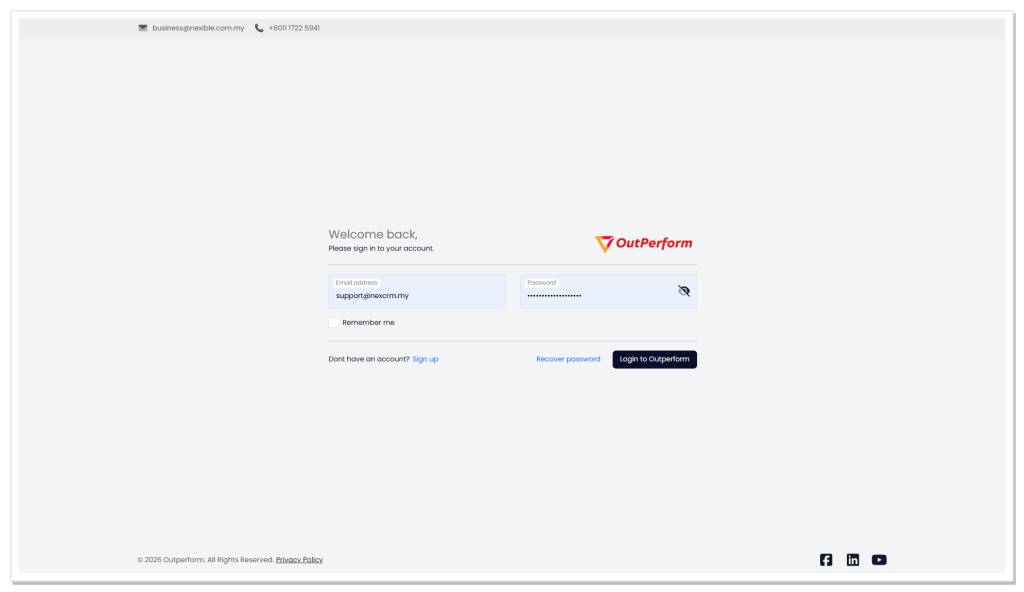
Log in to OutPerform.
STEP 2 Click the Settings icon.

Open Settings from the main navigation.
STEP 3 Under Integrations and Connections, select Facebook Form.
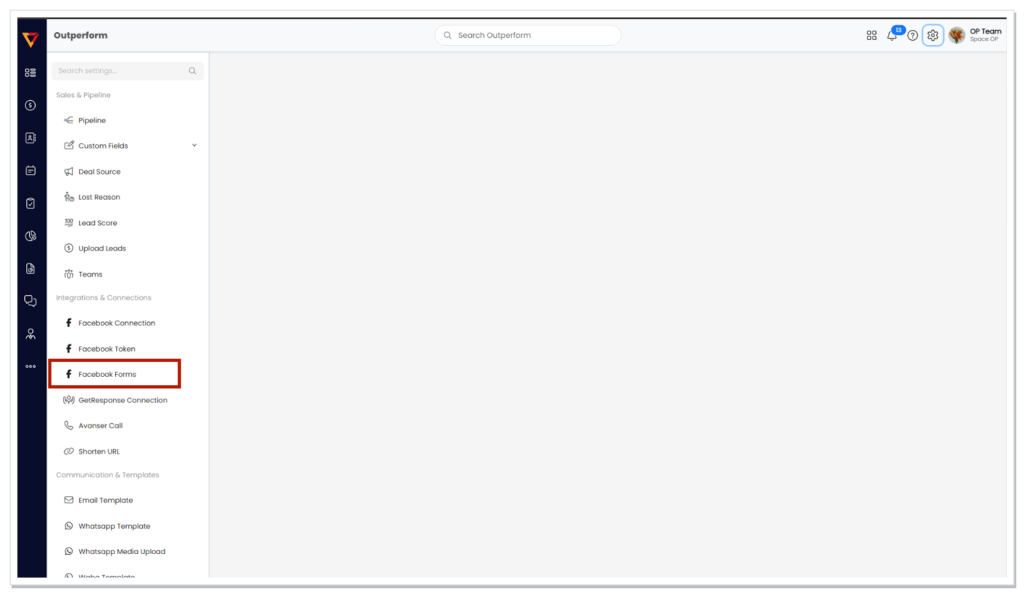
Go to Integrations and Connections > Facebook Form.
STEP 4 Click Add Form.
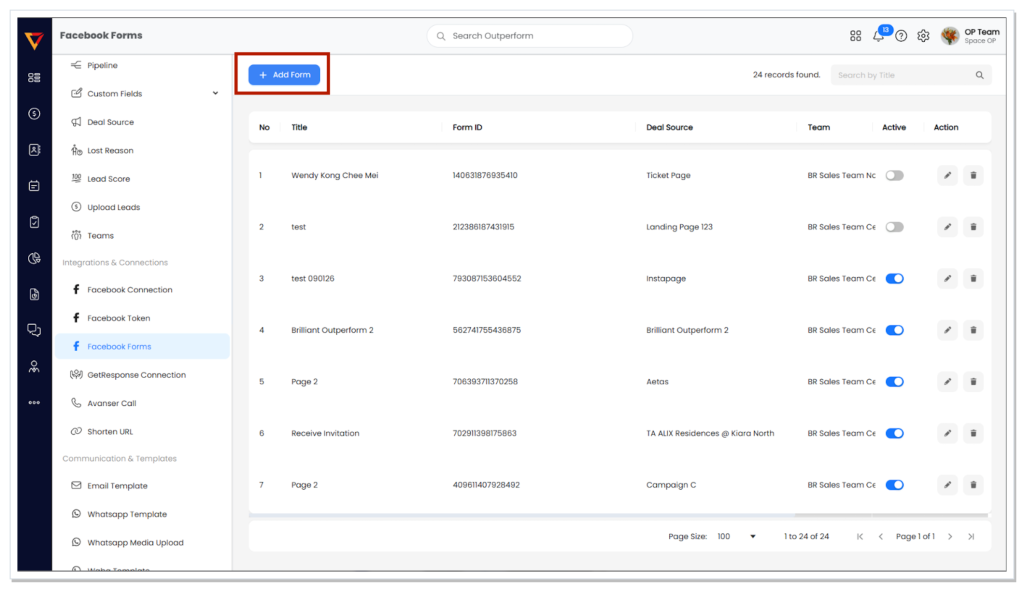
Select Add Form.
STEP 5 In the panel that opens on the right, complete the required fields.
Required fields
- Form Title
- Facebook Page
- Facebook Form
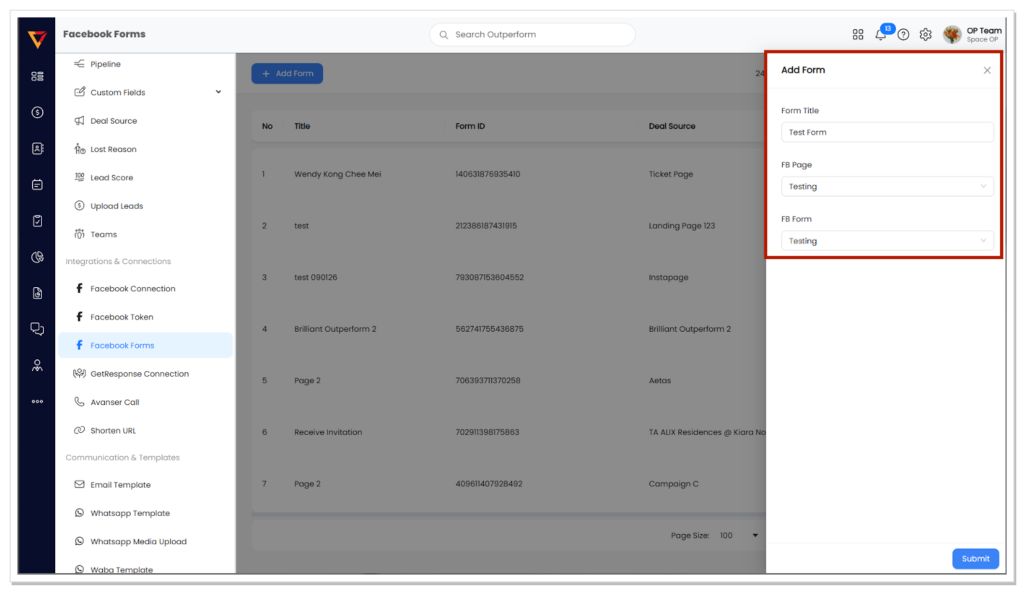
Complete the Facebook form details in the right-side panel.
STEP 6 Select the existing deal source that you want to link to the form.
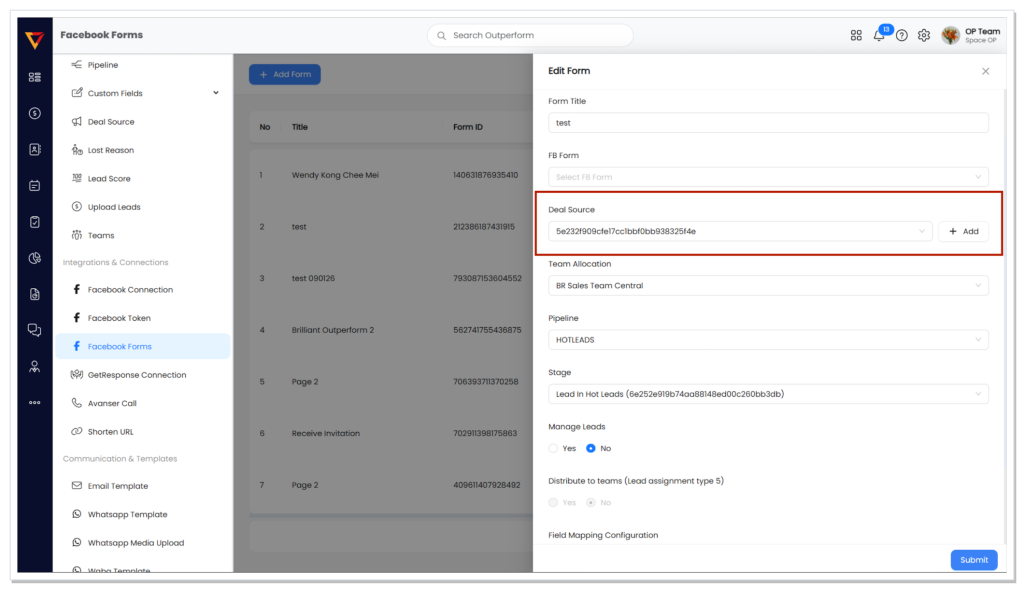
Choose the existing deal source.
STEP 7 Click Submit.
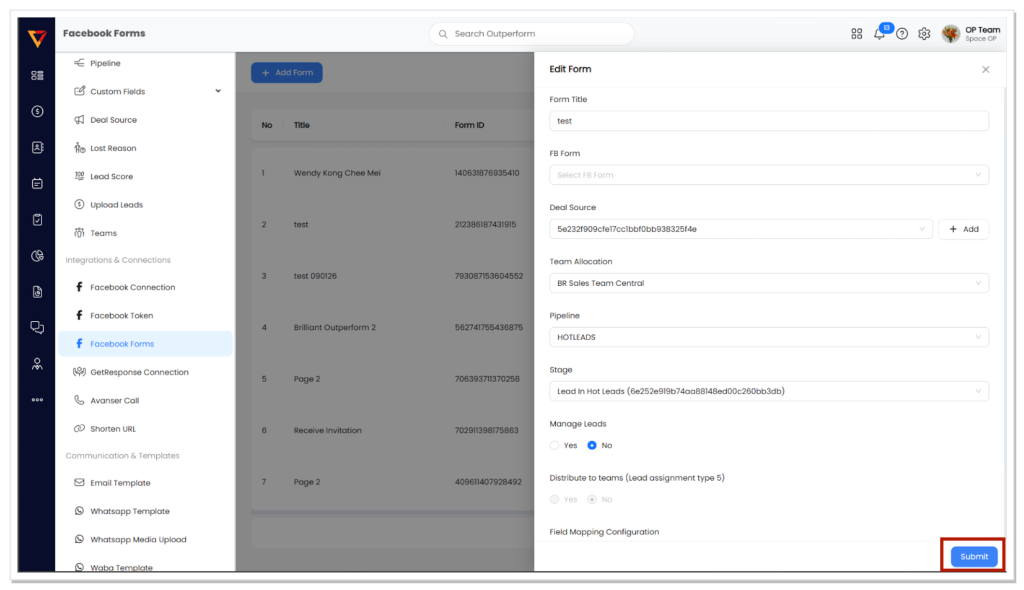
Submit the form configuration.
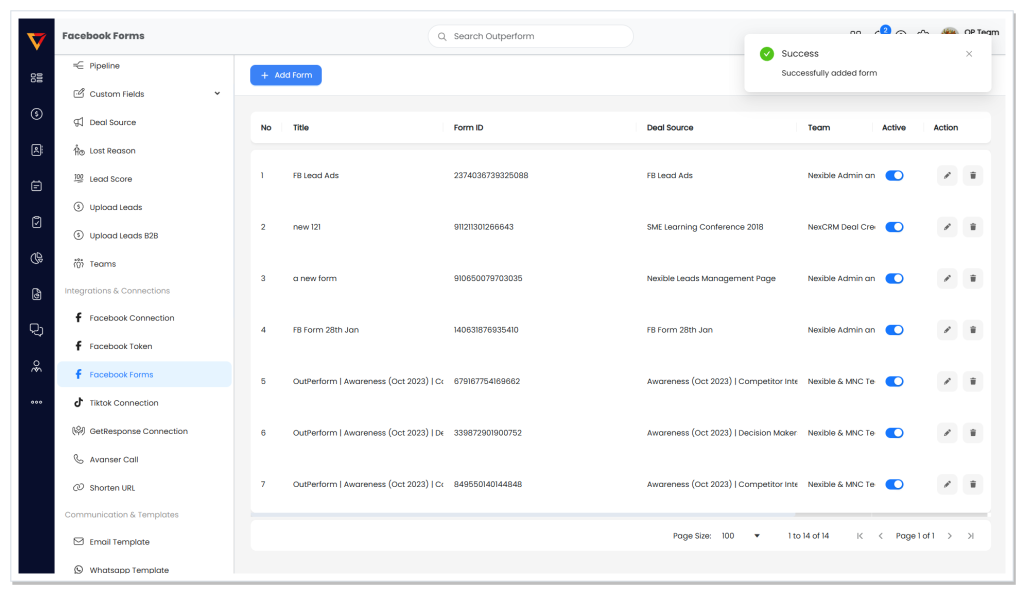
A success message confirms that the form has been added.
Completed: The Facebook form is linked to the selected deal source.
SCENARIO 2
Create a New Deal Source and Link a Facebook Form
Part 1: Create a New Deal Source
STEP 1 Log in to OutPerform.
STEP 2 Click the Settings icon.
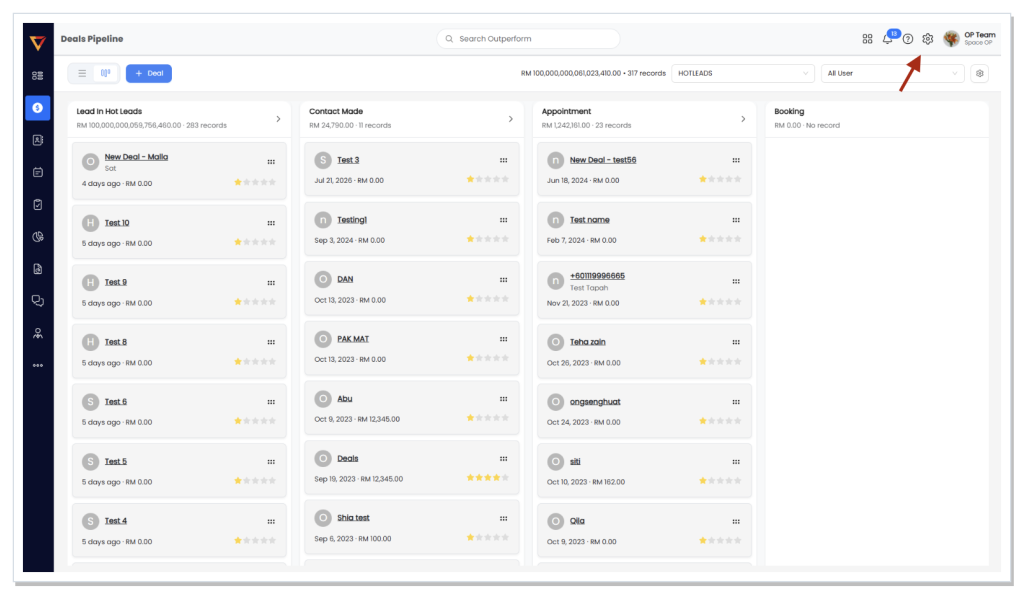
Open Settings from the main navigation.
STEP 3 Under Sales and Pipeline, select Deal Source.
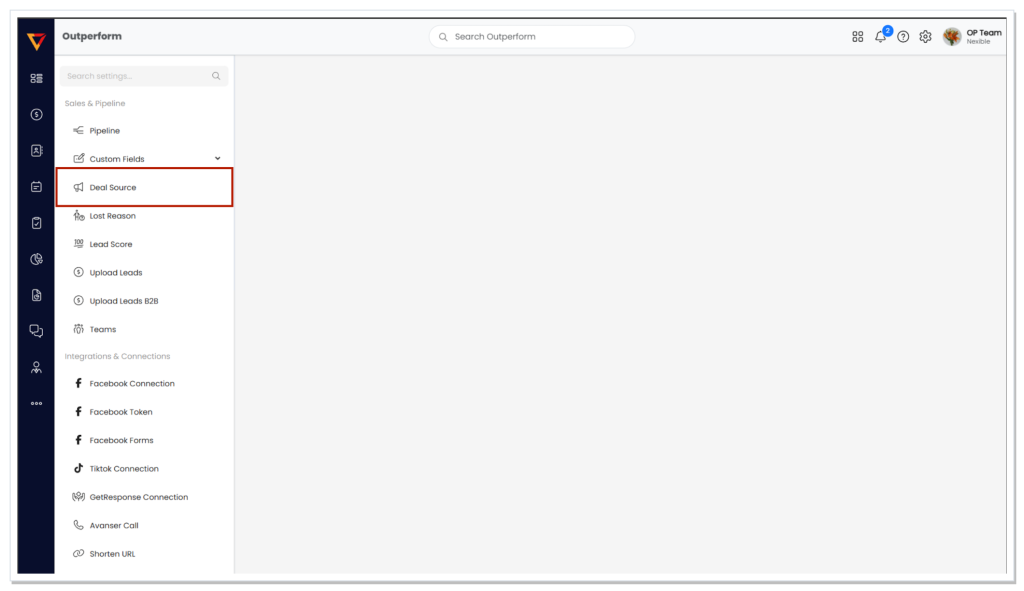
Go to Sales and Pipeline > Deal Source.
STEP 4 Click Add Deal Source.
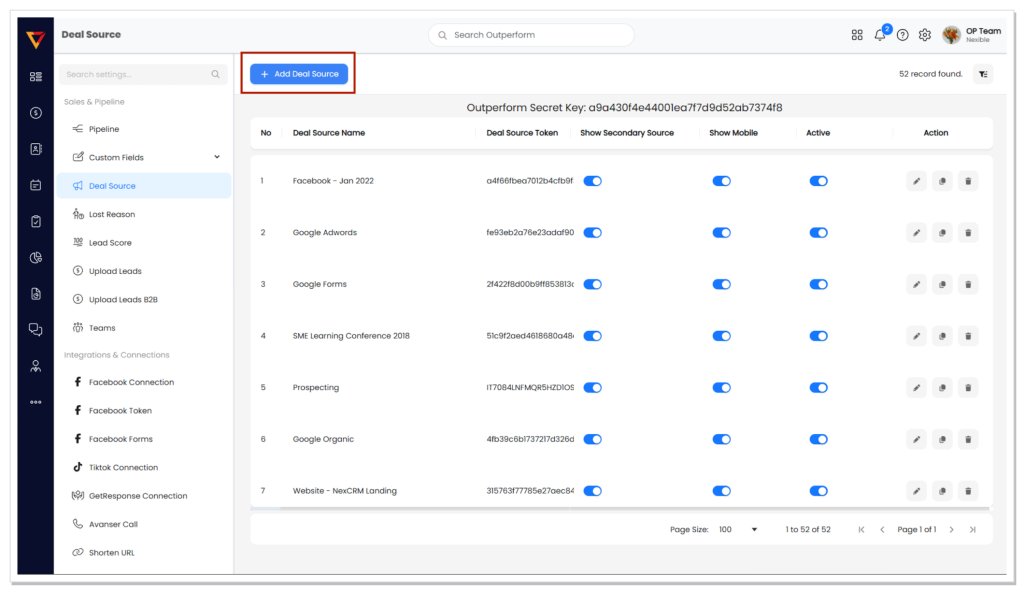
Select Add Deal Source.
STEP 5 In the panel that opens, complete the required fields.
Required fields
- Deal Source Name
- Marketing Category
- Business Unit
- Team Allocation
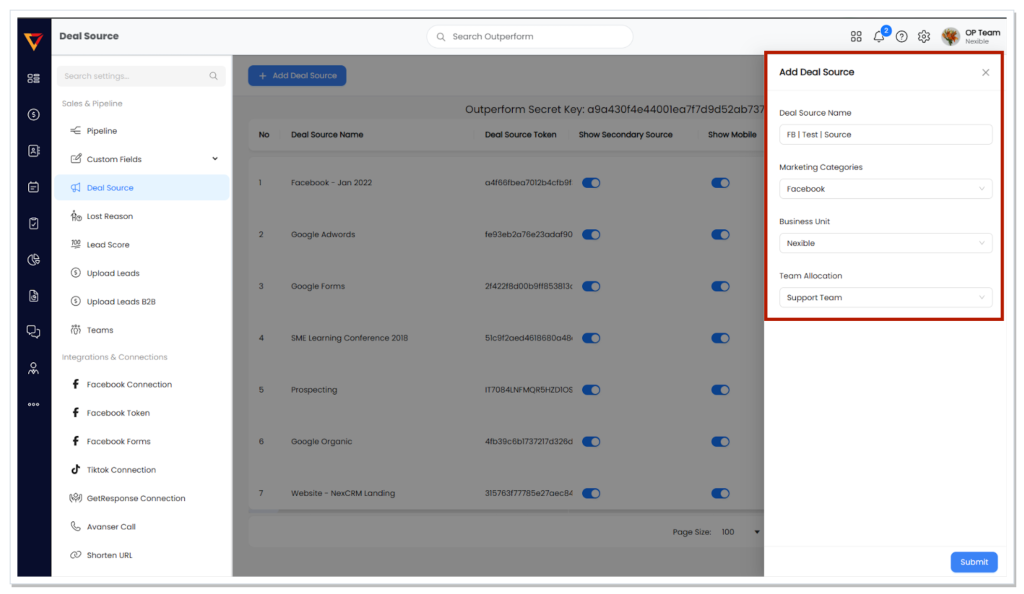
Complete the new deal source details.
STEP 6 Click Submit.
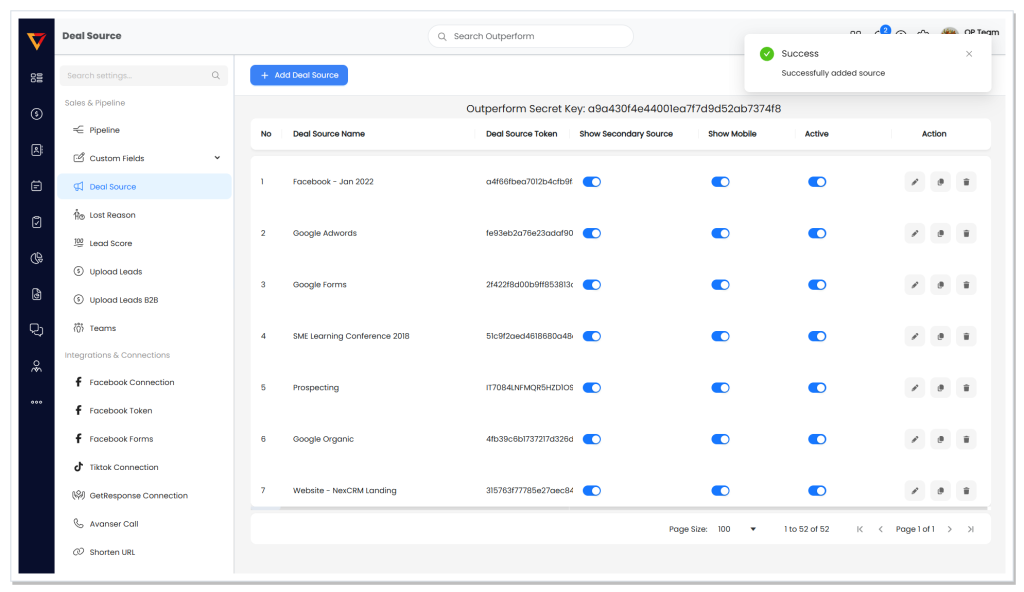
A success message confirms that the deal source has been created.
Completed: The new deal source is created.
Part 2: Link the Facebook Form
STEP 1 Return to the Settings page.
STEP 2 Under Integrations and Connections, select Facebook Form.
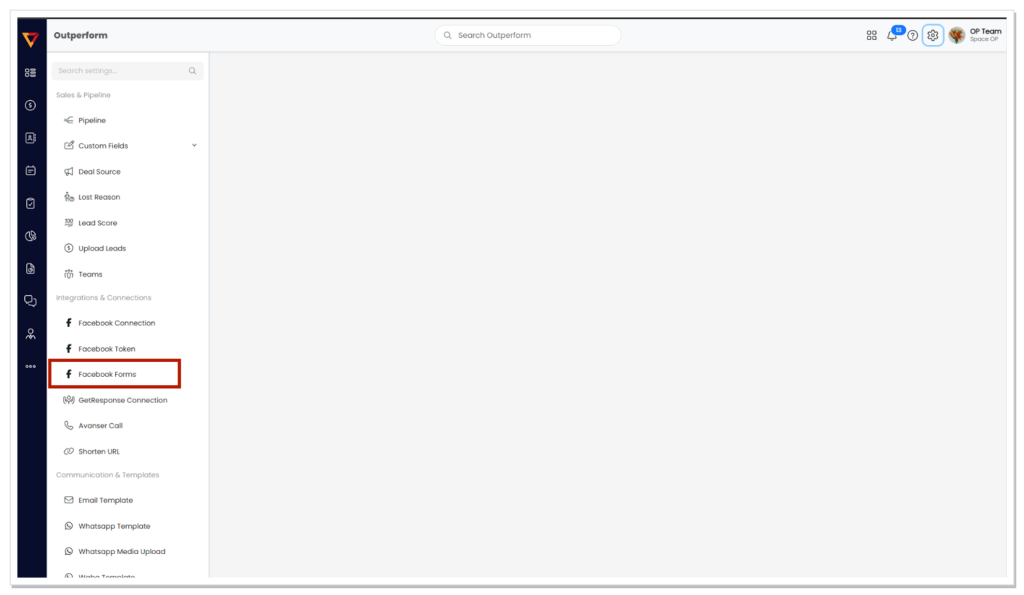
Go to Integrations and Connections > Facebook Form.
STEP 3 Click Add Form.
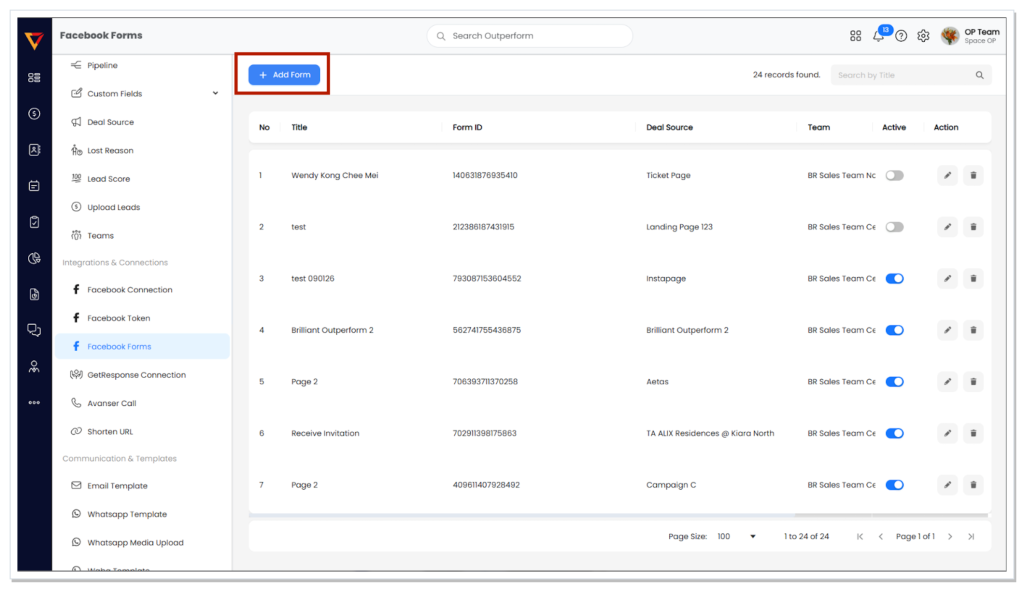
Select Add Form.
STEP 4 In the panel that opens on the right, complete the required fields.
Required fields
- Form Title
- Facebook Page
- Facebook Form
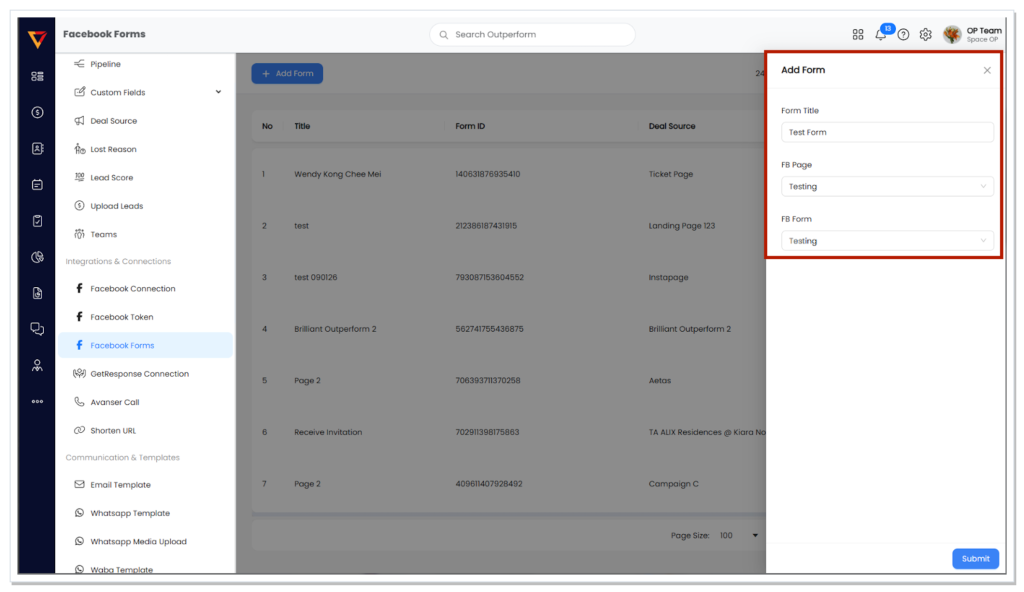
Complete the Facebook form details.
STEP 5 Select the newly created deal source.
STEP 6 Click Submit.
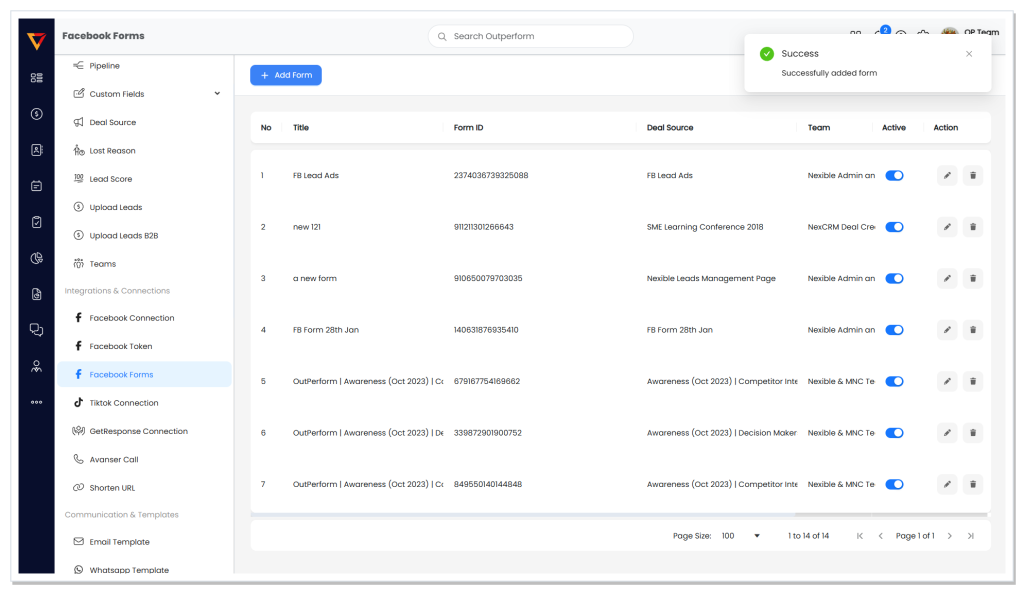
A success message confirms that the form has been added.
Completed: The Facebook form is linked to the new deal source.